
Setting up AI providers in MacWhisper
Using AI Providers in MacWhisper
MacWhisper can use AI to summarize a transcript, answer questions about it, improve or rewrite text, and run your own prompts. You can use MacWhisper Assistant, connect an online AI provider with your own API key, or run a compatible model locally on your Mac.
A MacWhisper Assistant subscription is currently only available on the App Store version
AI providers are separate from transcription models. Choosing an AI provider does not change how MacWhisper transcribes your audio. Cloud transcription services are configured separately in the transcription model picker.
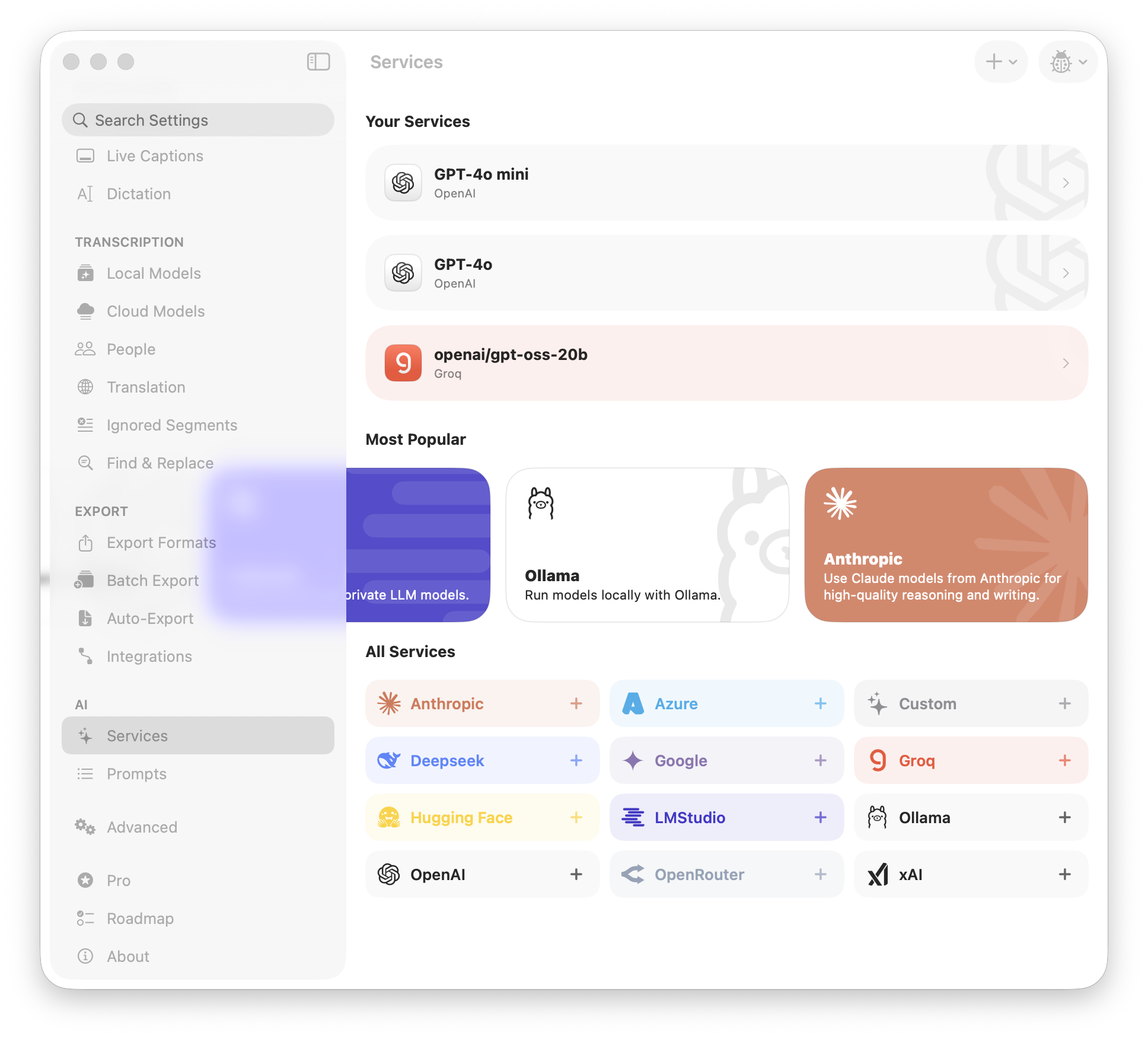
Available providers
MacWhisper supports the following AI services:
- MacWhisper Assistant — a subscription on the App Store version of the app which handles translation and AI services
- Apple — uses Apple's on-device Foundation Models. Availability depends on whether your Mac supports Apple Intelligence.
- OpenAI — uses OpenAI models with your OpenAI API key.
- Anthropic — uses Claude models with your Anthropic API key.
- Google Gemini — uses Gemini models with a Google AI Studio API key.
- xAI — uses Grok models with your xAI API key.
- OpenRouter — provides access to models from multiple companies through one OpenRouter account and API key.
- Hugging Face — uses supported models through the Hugging Face inference service.
- Azure OpenAI — connects to an Azure OpenAI deployment managed by you or your organization.
- Ollama — connects to models running locally through Ollama.
- LM Studio — connects to models served locally by LM Studio.
- Custom — connects to another OpenAI-compatible API endpoint.
- Groq — uses supported models through Groq's hosted API. This option is available in the direct-download version of MacWhisper.
- DeepSeek — uses DeepSeek's hosted API. This option is available in the direct-download version of MacWhisper.
The providers and models shown in MacWhisper can change as services are added or updated. The All Services section in MacWhisper's AI Services settings is the definitive list for your installed version.
Add an AI provider
- Open MacWhisper.
- Open Settings and select AI Services.
- Choose a provider under Most Popular or All Services. You can also use the Add Service button.
- Enter the requested connection details. For most online providers, this means an API key and a model. Local and custom services ask for a server address or base URL.
- Select Add Service or Save.
When you add your first service, MacWhisper selects it automatically. You can add more than one service, including multiple configurations for the same provider.
Where to get an API key
An API key is a secret that allows MacWhisper to use your account with a provider. A ChatGPT, Claude, or Gemini consumer subscription does not necessarily include API access or API credits.
- OpenAI API keys
- Anthropic API keys
- Google AI Studio API keys
- xAI API keys
- OpenRouter API keys
- Hugging Face access tokens
- Groq API keys
- DeepSeek API keys
Keep API keys private. Do not send them to other people or include them in screenshots. Charges from a connected provider are billed by that provider and are separate from your MacWhisper purchase or subscription.
Provider-specific setup
MacWhisper Assistant
No API key is required. Activate an eligible Assistant subscription, then select MacWhisper Assistant when using an AI feature. (Only available on the Mac App Store version of the app)
Apple
No API key is required. Apple Intelligence must be available and enabled on your Mac. Processing happens on the device, but model capability and availability depend on your Mac and system configuration.
OpenAI, Anthropic, Gemini, xAI, Groq, DeepSeek, OpenRouter, and Hugging Face
Create an API key with the provider, paste it into MacWhisper, and select or enter a supported model. If MacWhisper asks for a model ID, copy the exact ID from the provider's model documentation. Model names are case-sensitive and can differ from the names shown in consumer chat apps.
If a model stops working, confirm that it is still available to your provider account and update the saved service with a current model ID.
Azure OpenAI
Ask your Azure administrator for:
- An API key
- The full deployment URL
- The API version
The deployment URL must point to the chat-completions endpoint for your deployed model. Azure deployment names and model names are not always the same.
Ollama
- Install Ollama.
- Download and run a model in Ollama.
- Add Ollama in MacWhisper's AI Services settings.
- Keep the default base URL,
http://localhost:11434, unless Ollama is running at a different address. - Refresh the model list and select your downloaded model.
Ollama must be running while MacWhisper uses it.
LM Studio
- Install LM Studio and download a model.
- Load the model and start LM Studio's local server.
- Add LM Studio in MacWhisper's AI Services settings.
- Keep the default base URL,
http://localhost:1234/v1, unless you changed the server address. - Refresh the model list and select the loaded model.
LM Studio and its local server must be running while MacWhisper uses it.
Custom OpenAI-compatible provider
Choose Custom when your service is not listed but offers an OpenAI-compatible chat-completions API. Enter:
- A name that will help you recognize the service
- The provider's base URL, usually ending in
/v1 - An API key, if the server requires one
- The exact model ID supported by the server
Compatibility varies between servers. The endpoint must support the OpenAI-style requests used by MacWhisper; a website offering a chat interface is not enough by itself.
Use a configured provider
Open a transcription and select an AI feature such as a summary, prompt, or chat. Use the provider picker to choose the service you want MacWhisper to use. The selected service is used for subsequent AI requests until you choose another one.
You can edit, duplicate, or remove a saved service from Settings > AI Services. Duplicating is useful when you want separate entries for different models from the same provider.
Privacy
When you use a remote provider, MacWhisper sends the transcript text and your prompt to that provider for processing. The text no longer stays solely on your Mac and is handled according to the provider's terms, privacy policy, and account settings.
Apple's on-device model, Ollama, and LM Studio can process text locally. A local service may still make network connections for model downloads, updates, or features configured by that service.
Before sending confidential, personal, medical, legal, or work-related material, confirm that your chosen provider and account meet your privacy and compliance requirements.
Troubleshooting
The API key is rejected
- Make sure you copied the complete key without spaces or quotation marks.
- Confirm that the key belongs to the provider you selected.
- Check that API access and billing are enabled on the provider account.
- Create a new key if the old one was revoked or expired.
The model cannot be found
- Use the exact model ID from the provider's API documentation.
- Confirm that your account has access to that model.
- Edit the service and select or enter a currently supported model.
A local provider does not connect
- Make sure Ollama or LM Studio is running and its server is started.
- Check the base URL and port.
- Make sure a model has been downloaded and, for LM Studio, loaded.
- If the server runs on another computer, make sure it accepts connections from your Mac. Do not expose an unauthenticated local AI server to the public internet.
The request is slow or fails with a long transcript
Large transcripts can exceed a provider's context or request limit. Try a model with a larger context window, shorten the transcript or prompt, or use a different provider. Provider outages, rate limits, and insufficient API credit can also cause requests to fail.