
My camera stutters in Zoom or Teams during a live meeting transcription
While MacWhisper transcribes a meeting live, the other participants may see your video freeze or drop to about one frame per second. Your audio and the transcript are unaffected, and the video recovers once the live transcription ends.
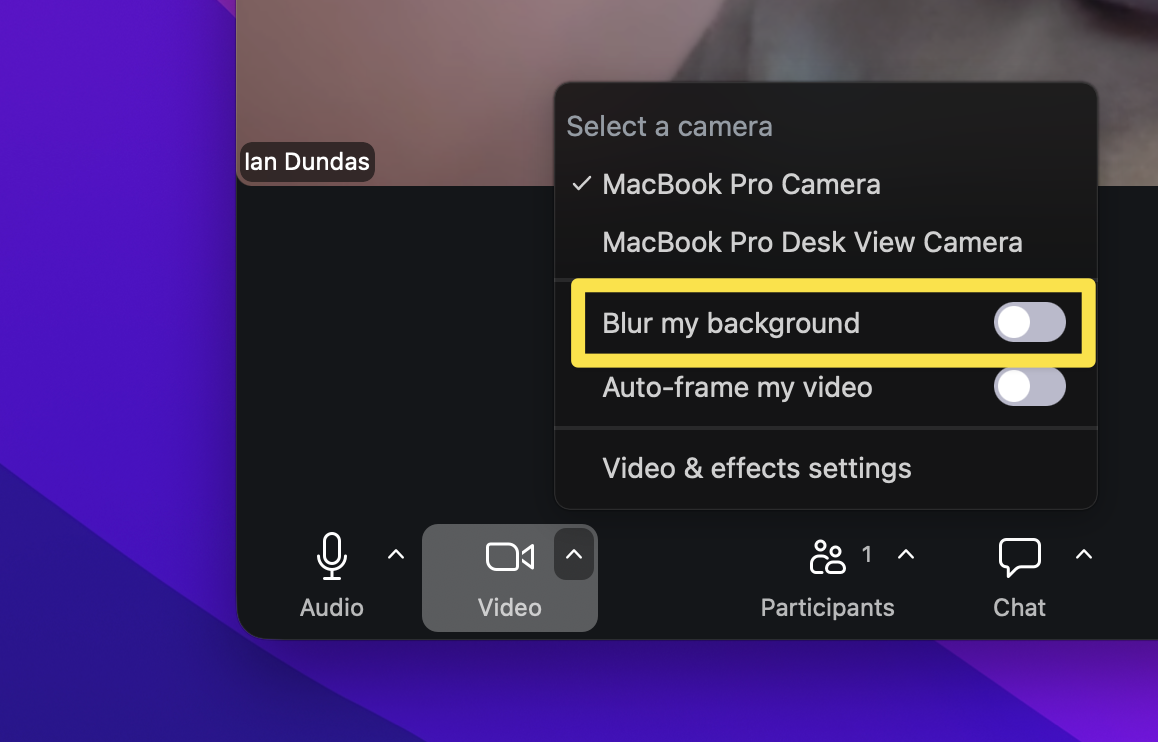
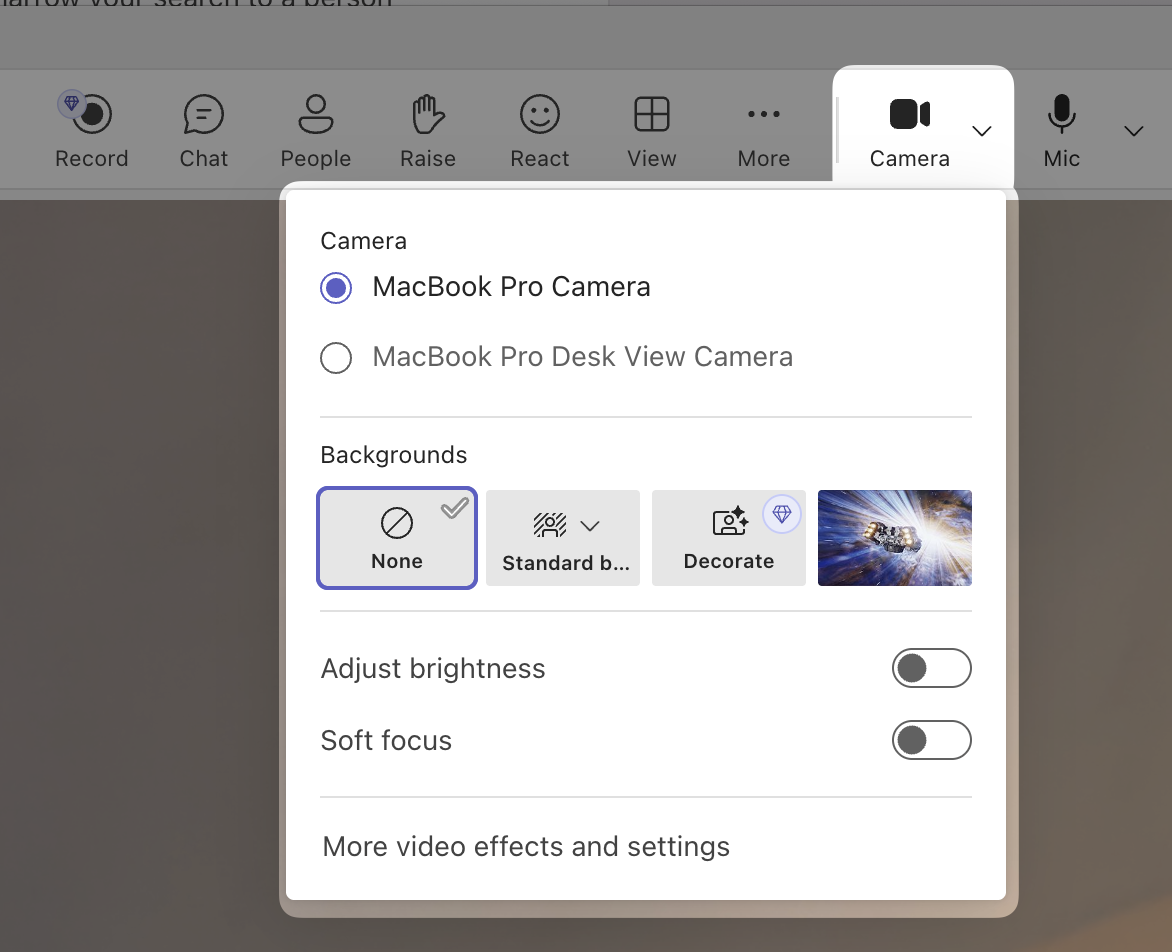
This happens only when the call app's own background effect is on (Zoom's "Blur my background" or virtual background, Teams' background effects). Those effects and live transcription both use the Mac's Neural Engine, and the call app drops the frames it cannot process in time. The macOS camera effects do not have this problem, so the fix is to use them instead.
Use the macOS camera effects instead
- Turn off the background effect inside the call app.
- Zoom: Settings > Background & Effects > choose None, and turn off Blur.
-
Teams: during a call, More > Video effects > choose None.
-
While the call app is using the camera, click the green camera icon in the menu bar and choose Portrait (background blur), Studio Light or Background.
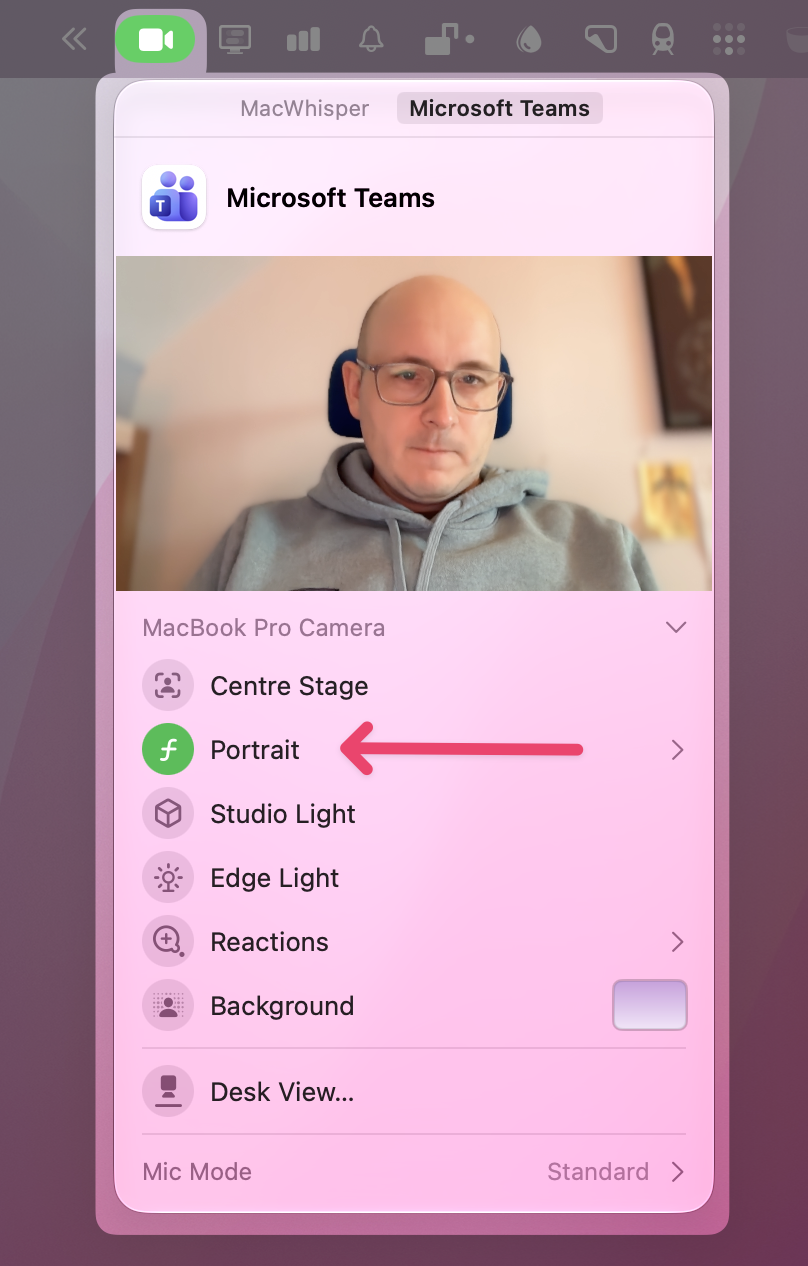
The macOS effects work in every call app and keep your camera smooth while MacWhisper transcribes.
We are working on a fix so that live transcription and the call app's own effects can run together. Until then, the steps above are the way around it.